
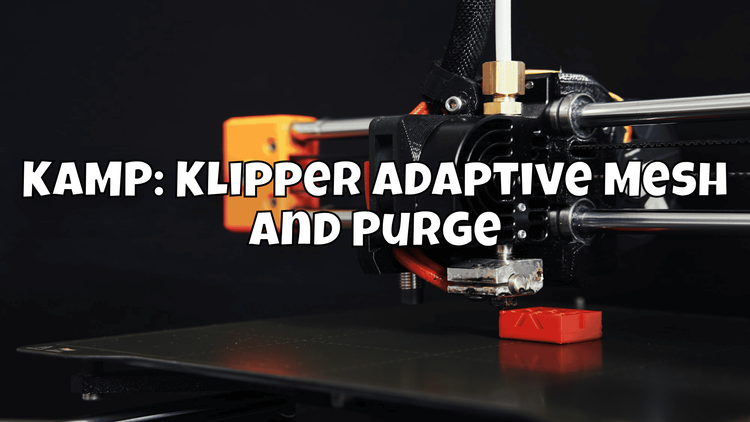

TL;DR: KAMP (Klipper Adaptive Mesh and Purge) ensures your Klipper printer only meshes where your model actually sits – and automatically draws a purge line. This saves time at print start and significantly improves the first layer.
🖨️ What is KAMP?
3D printing is a fascinating world full of innovations and technical refinements. One of the best developments for Klipper users is KAMP – Klipper Adaptive Mesh and Purge. Instead of scanning the entire print bed, KAMP analyzes the G-code file and only creates a mesh where your model will actually be printed. The result: significantly faster print starts while still achieving perfect first layers.
Klipper itself is known for its ability to maximize 3D printer performance by leveraging the computing power of an external computer (e.g., a Raspberry Pi). KAMP takes this a step further by integrating adaptive mesh bed leveling and automated purging into the printing process.
Adaptive Mesh Bed Leveling 🌐
Adaptive Mesh Bed Leveling is a technique where the printer only scans the area of the print bed that will actually be printed on. Instead of laying a complete grid across the entire bed, KAMP calculates the bounding box of your model from the G-code and limits the mesh to that area. This saves an enormous amount of time – especially for small parts on a large bed.
Automated Purging 🧼
Adaptive Purge places the purge line directly next to your model instead of always drawing it in the same spot. This minimizes unnecessary travel moves and ensures the nozzle is optimally prepared before the actual print begins.
🚀 Why KAMP?
Advantages of Adaptive Mesh Bed Leveling
- Faster print starts: Instead of probing 25+ measurement points across the entire bed, only the relevant points are measured. For small models, this can reduce the meshing process from 2 minutes to 15 seconds.
- Better first layer adhesion: By adjusting the print head to the height differences of the print bed, the first layer adheres much better.
- Improved print quality: Uneven print beds can lead to warping and print defects. KAMP effectively prevents this.
- Less manual calibration: The tedious manual bed leveling is largely eliminated.
Advantages of Adaptive Purge
- Intelligent purge positioning: The purge line is placed directly next to the print object – no more long travel moves.
- Consistent print quality: A well-prepared nozzle delivers consistently good results.
- Less maintenance effort: Automation means fewer manual interventions.
🛠️ Installing KAMP
Prerequisites
Before we get started, you'll need:
- A 3D printer with Klipper firmware
- A Raspberry Pi (or similar SBC) with Moonraker and Mainsail/Fluidd
- Git installed on the Pi
- Basic knowledge of Klipper configuration files
Step 1: Clone KAMP
Connect to your Raspberry Pi via SSH and clone the repository:
cd ~
git clone https://github.com/kyleisah/Klipper-Adaptive-Meshing-Purging.git
ln -s ~/Klipper-Adaptive-Meshing-Purging/Configuration/ ~/printer_data/config/KAMP
Step 2: Configure Moonraker
To allow KAMP to receive automatic updates through Moonraker, add the following to your moonraker.conf:
[update_manager Klipper-Adaptive-Meshing-Purging]
type: git_repo
channel: dev
path: ~/Klipper-Adaptive-Meshing-Purging
origin: https://github.com/kyleisah/Klipper-Adaptive-Meshing-Purging.git
managed_services: klipper
primary_branch: main
Step 3: Include KAMP in printer.cfg
Add the include directive at the very top of your printer.cfg:
[include KAMP_Settings.cfg]

# Important: Make sure exclude_object is enabled
[exclude_object]
Important: Your slicer must have Object Labeling enabled (e.g., in PrusaSlicer/OrcaSlicer under "Label objects") so that KAMP can recognize individual objects and correctly calculate the bounding box.
⚙️ Configuration
KAMP_Settings.cfg
The file KAMP_Settings.cfg is the heart of the configuration. Here you define which features are active and how they behave:
# KAMP_Settings.cfg

[include ./KAMP/Adaptive_Meshing.cfg]
[include ./KAMP/Line_Purge.cfg]
# [include ./KAMP/Voron_Purge.cfg]  # Alternative for Voron printers
# [include ./KAMP/Smart_Park.cfg]   # Optional Smart Parking

# ── Adaptive Meshing ──
[gcode_macro _KAMP_Settings]
variable_mesh_margin: 5             # Margin around the model in mm
variable_fuzz_amount: 0             # Random offset of probe points (0 = off)
variable_probe_dock_enable: False   # True if using a Klicky/Euclid probe
variable_attach_macro: 'Attach_Probe'
variable_detach_macro: 'Detach_Probe'

# ── Purge ──
variable_purge_height: 0.8          # Height of the purge line
variable_tip_distance: 0            # Distance between filament tip and nozzle
variable_purge_margin: 10           # Distance of purge line from print object
variable_purge_amount: 30           # Filament amount for purge line (mm)
variable_flow_rate: 12              # Flow rate of purge line (mm³/s)
gcode:
Mesh Parameters in printer.cfg
Your existing [bed_mesh] section remains unchanged. KAMP dynamically overrides the mesh_min, mesh_max, and probe_count parameters based on the G-code:
[bed_mesh]
speed: 150
horizontal_move_z: 5
mesh_min: 10, 10
mesh_max: 220, 220
probe_count: 5, 5
algorithm: bicubic
fade_start: 1
fade_end: 10
fade_target: 0
🔧 Klipper Macro Integration
The crucial step is integrating KAMP into your START_PRINT macro. Here you call the KAMP functions:
[gcode_macro START_PRINT]
gcode:
    {% set BED_TEMP = params.BED_TEMP|default(60)|float %}
    {% set EXTRUDER_TEMP = params.EXTRUDER_TEMP|default(200)|float %}

    # Heat bed
    M190 S{BED_TEMP}

    # Home all axes
    G28

    # ── KAMP: Create adaptive mesh ──
    BED_MESH_CALIBRATE    # KAMP automatically overrides this command

    # Heat extruder (after meshing to avoid oozing)
    M109 S{EXTRUDER_TEMP}

    # ── KAMP: Adaptive purge line ──
    LINE_PURGE            # Draws purge line next to the model

    # Start print
    G92 E0
    G1 Z2.0 F3000
Tip: The order matters! First BED_MESH_CALIBRATE (create mesh), then heat the extruder, then LINE_PURGE. This prevents filament from dripping out of the nozzle during meshing.
In your slicer (e.g., OrcaSlicer), the start G-code then looks like this:
START_PRINT BED_TEMP=[bed_temperature_initial_layer_single] EXTRUDER_TEMP=[nozzle_temperature_initial_layer]📊 Results: Before vs. After
The differences after setting up KAMP are immediately noticeable:
| Aspect | Without KAMP | With KAMP |
|---|---|---|
| Mesh duration (small part) | ~90-120 seconds | ~10-20 seconds |
| Mesh duration (full bed) | ~90-120 seconds | ~80-100 seconds |
| Purge line position | Always the same (e.g., left edge) | Directly next to the model |
| First layer quality | Good (with calibrated bed) | Very good (locally optimized) |
| Time saved per print | Reference | 30-90 sec. for small parts |
Especially for small models on a large print bed (e.g., a Benchy on a 300x300mm bed), KAMP makes a huge difference. Instead of measuring 25 points across the entire bed, only 4-9 points in the relevant area are measured. This is not only faster but also more accurate, because the measurement points are closer to the actual print area.
🔍 Troubleshooting
Here are the most common issues and their solutions:
"Move out of range" Error
This error occurs when KAMP calculates probe points outside the defined range. Solution:
# In KAMP_Settings.cfg, reduce the margin:
variable_mesh_margin: 0    # Instead of 5
Also check whether your mesh_min and mesh_max values in [bed_mesh] correctly match the physical print area.
KAMP Doesn't Create an Adaptive Mesh
This is usually because the slicer doesn't embed object information in the G-code. Solution:
- PrusaSlicer/OrcaSlicer: Enable "Label objects" in the print settings
- Cura: Enabled by default (from version 5.x)
- Check the G-code for
EXCLUDE_OBJECT_DEFINEentries at the beginning of the file
Purge Line Doesn't Stick / Too Thin
Adjust the purge parameters in KAMP_Settings.cfg:
variable_purge_height: 0.6      # Lower = more squish
variable_purge_amount: 40       # More filament = thicker line
variable_flow_rate: 10          # Slower = better adhesion
Mesh is Created the Same Way Every Print
Make sure [exclude_object] is enabled in your printer.cfg and Moonraker preprocesses the G-code files. Your moonraker.conf should contain:
[file_manager]
enable_object_processing: True
🏁 Conclusion
KAMP is a must-have for every Klipper user. Installation takes less than 10 minutes, and the benefits are immediately noticeable:
- Faster print starts through targeted meshing only in the relevant area
- Better first layers through locally optimized bed leveling
- Intelligent purging directly next to the print object
- Less wear on the probe sensor due to fewer measurement points
If you're already using Klipper, there's no reason not to install KAMP. It's one of those upgrades where you'll wonder why you didn't do it sooner. Give it a try – your printer will thank you! 🎉
Discover more articles
KAMP: Klipper Adaptive Mesh and Purge
KAMP optimiert dein Klipper-Setup mit adaptivem Mesh-Leveling und automatischem Purge. Schnellere Druckstarts und bessere erste Schichten.

Switch on 3D printer when slicer is opened
Today I'll show you how you can automatically switch on your 3D printer when you start your slicer software on your computer ✨

Spoolman: Your filament reel management
Lost track of your filaments? I have a solution for that! 🛵
My path to 3D printing
How I got into 3D printing and why I use which printer and software, I'll show you here 💡