

You use Home Assistant but also have Apple devices and want to integrate your cameras, doorbells, or other devices into HomeKit? Then Scrypted is exactly the right tool for you. Scrypted is an open-source home automation hub that specializes in video integration and makes your devices available in HomeKit, Google Home, or Alexa in no time. 🎥
TL;DR: Scrypted is an open-source video hub that brings cameras to Apple HomeKit lightning-fast – including HomeKit Secure Video. Installed via Docker, it pairs perfectly with Home Assistant.
What Is Scrypted? 🤔
Scrypted is a lightweight platform that acts as a bridge between your smart home devices and platforms like Apple HomeKit, Google Home, and Amazon Alexa. The biggest advantage: Scrypted is extremely fast. While other solutions often take several seconds to load a camera stream, Scrypted delivers the feed almost in real time.
The project is completely open source and runs on Node.js. You can run it on a Raspberry Pi, a NAS, in Docker, or on any other Linux/macOS/Windows system.
Why Scrypted Instead of Homebridge? ⚖️
Many people know Homebridge as the classic solution for integrating non-HomeKit devices into Apple's ecosystem. Homebridge is fantastic – but when it comes to cameras and video streams, it reaches its limits. Here are the key differences:
| Homebridge | Scrypted | |
|---|---|---|
| Focus | General device bridge | Video-optimized |
| Camera load time | 3-10 seconds | Under 1 second |
| HomeKit Secure Video | Limited | Fully supported |
| Transcoding | CPU-intensive | Hardware-accelerated |
| Plugins | Huge selection | Focused on video + bridges |
In short: For cameras and doorbells, Scrypted is clearly the better choice. For everything else, Homebridge or Home Assistant remains a good option.
Installation with Docker 🐳
The easiest way to install Scrypted is via Docker. Here is a minimal docker-compose.yml:
version: "3"
services:
  scrypted:
    image: koush/scrypted
    container_name: scrypted
    restart: unless-stopped
    network_mode: host
    environment:
      - SCRYPTED_WEBHOOK_UPDATE_AUTHORIZATION=Bearer YOUR_TOKEN
    volumes:
      - ./scrypted:/server/volume
      - /run/dbus:/run/dbus
      - /dev/bus/usb:/dev/bus/usb
    devices:
      - /dev/dri:/dev/dri  # For hardware transcoding
After starting, you can access the Scrypted Dashboard at https://localhost:10443.
Important Notes
network_mode: hostis important so that HomeKit can find the devices via mDNS./dev/drienables hardware transcoding (Intel QuickSync, VAAPI) – this massively reduces CPU load.- On a Raspberry Pi 4, Scrypted runs well for 2-3 cameras. For more cameras, I recommend a mini PC with an Intel CPU.
 Marco Franke
Setting Up a Camera in Scrypted 🎥
After installation, set up your cameras via the dashboard:
- Open the Scrypted Dashboard at
https://localhost:10443 - Click "Add Device"
- Select the appropriate plugin for your camera:
- ONVIF – for most IP cameras
- RTSP – for cameras with RTSP stream
- Amcrest / Hikvision / Unifi – manufacturer-specific plugins
- Ring / Nest / Arlo – cloud cameras
- Enter the IP address and credentials
- Scrypted automatically detects the available streams
Enabling HomeKit Secure Video (HKSV)
The killer feature of Scrypted: HomeKit Secure Video. Camera recordings are stored end-to-end encrypted in iCloud, and you get intelligent notifications (people, animals, vehicles, packages). Here is how to enable it:
- Install the HomeKit Plugin in Scrypted
- Scan the pairing code – Scrypted appears as a bridge in your Home app
- In the Home app: select the camera → "Enable Recording"
- Configure streaming and recording options
Important: For HKSV, you need an iCloud+ plan (starting at 50 GB) and a Home Hub (Apple TV, HomePod, or iPad).
Combining Scrypted and Home Assistant 🤝
Scrypted and Home Assistant are not mutually exclusive – on the contrary, they complement each other perfectly:
- Scrypted handles video integration and the HomeKit bridge
- Home Assistant handles automation and device management
You can integrate Scrypted cameras via the Scrypted NVR Plugin or directly via RTSP into Home Assistant. This way, you get the best of both worlds: lightning-fast camera feeds in HomeKit and powerful automations in Home Assistant.
Marco Franke
Supported Devices 📱
Scrypted supports a wide range of devices:
- IP cameras: Amcrest, Hikvision, Dahua, Reolink, Unifi Protect
- Doorbells: Ring, Nest, Amcrest
- Cloud cameras: Google Nest, Arlo, Ring
- ONVIF-compatible cameras: Practically any camera with ONVIF support
- Sensors and switches: Via additional plugins
Performance Tips ⚡
- Use hardware transcoding: Intel QuickSync or VAAPI reduce CPU load by 80-90%
- Enable prebuffer: Scrypted can buffer the stream in the background so the feed is instantly available when you open the Home app
- Configure substreams: Use a low-resolution substream for live views and the main stream only for recordings
- SSD instead of SD card: On the Raspberry Pi, an SSD makes a huge difference
Marco Franke Marco Franke
Conclusion 🎯
Scrypted is a game changer for anyone who wants to use cameras in HomeKit. The speed, HKSV support, and easy Docker installation make it the best solution for video integration in the smart home. Combined with Home Assistant, you have a setup that leaves little to be desired.
Have you tried Scrypted yet? Which cameras do you use? Let me know in the comments! 👇
Discover more articles
Scrypted: Dienste in HomeKit integrieren
Scrypted bringt deine Kameras blitzschnell in Apple HomeKit – mit HomeKit Secure Video, Docker-Setup und Hardware-Transkodierung. 🎥
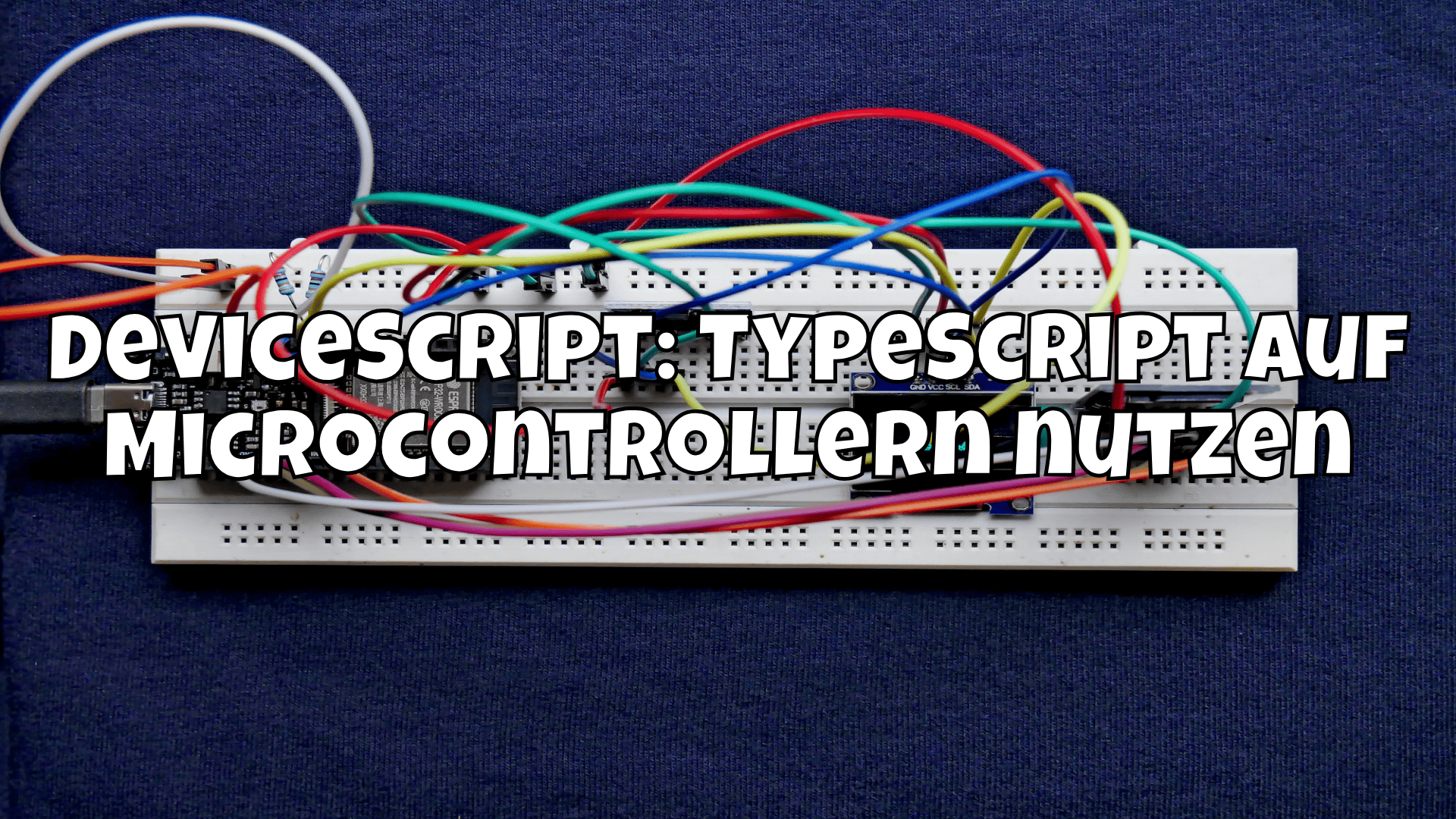
DeviceScript: TypeScript auf Microcontrollern nutzen
Mit DeviceScript von Microsoft kannst du TypeScript direkt auf ESP32 und RP2040 ausführen. So programmierst du Microcontroller mit moderner Webtech.

Klipper: Use the Job Queue to Auto-Start Your 3D Printer 🖨️
With Moonraker's job queue and power component, your 3D printer powers on automatically when a print job is queued.
Smart Automation with Tags in Home Assistant: Efficiency Meets Simplicity 🌟
Tags in Home Assistant: Group devices dynamically and automate your smart home more efficiently than ever! 🌟

WebNUT: Integrate UPS into the SmartHome
Learn how to install and configure WebNUT in Docker and integrate it into HomeAssistant to monitor your UPS devices in your smart home. 🏠

Switch on 3D printer when slicer is opened
Today I'll show you how you can automatically switch on your 3D printer when you start your slicer software on your computer ✨